



It's Monday morning. You've got your bookings report open in one tab, payments in another, and a spreadsheet you exported last month in a third. Somewhere in there is the answer to a simple question: why did your active members dip when you signed more new clients than ever?
The data was never the problem. Getting to it, and turning it into something you can act on before the 9am class, is. That's exactly what the LegitFit MCP connector is built for.
In this post we'll explain what an MCP connector is in plain English, what LegitFit's connector can do for your gym, PT business or studio, and how to start using it this week.
What is an MCP connector?
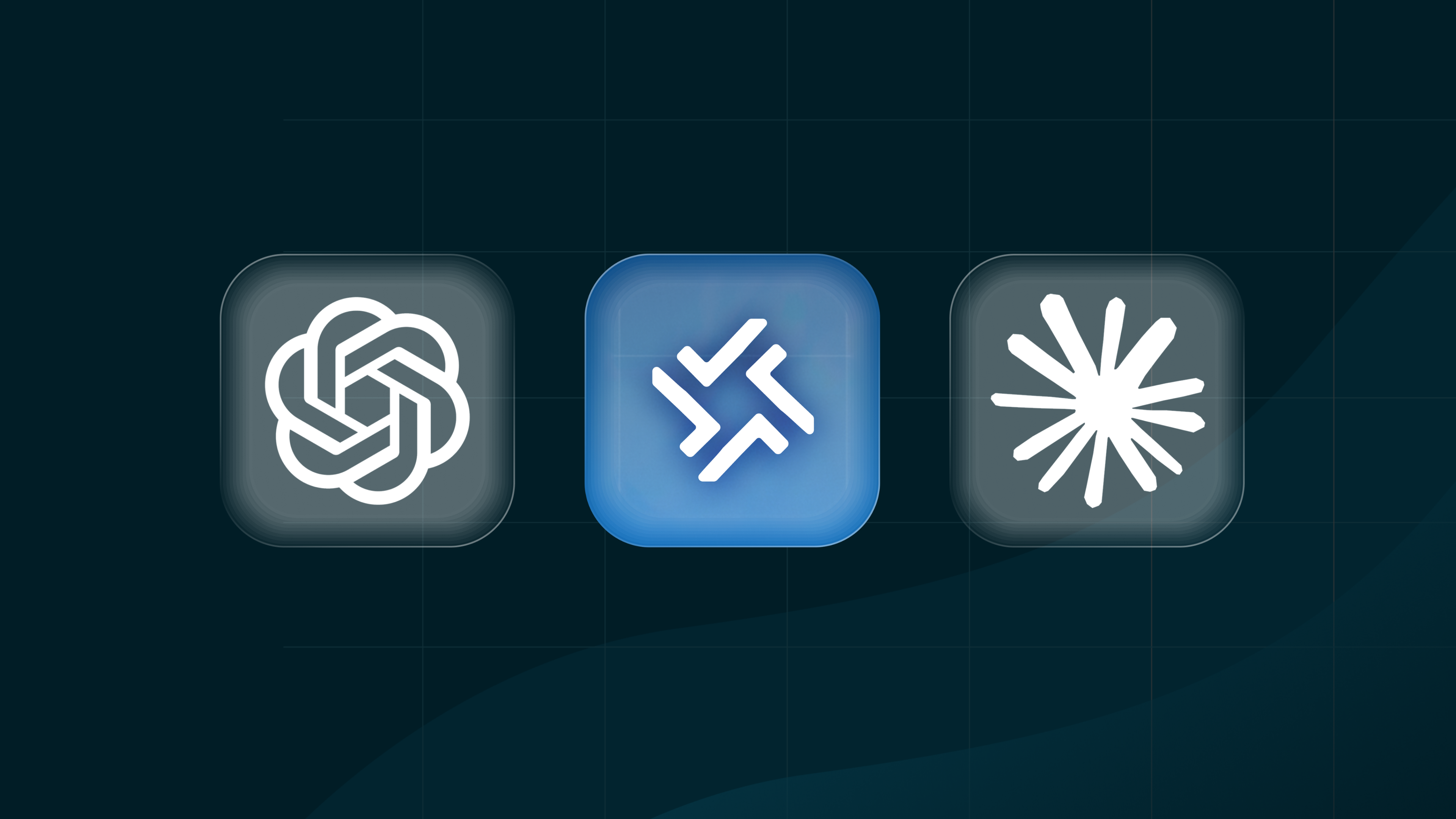
MCP stands for Model Context Protocol. It's an open standard, introduced by Anthropic in late 2024, that lets AI assistants like ChatGPT and Claude connect securely to the software where your information lives.
Think of it as a common language. Because AI tools and software providers are built to the same standard, one connector can work across several AI assistants instead of needing a separate integration for each.
On its own, an AI assistant is very well read but knows nothing about your business. Ask it what a good retention rate looks like and you'll get a sensible answer. Ask which of your members haven't booked in three weeks and it has no idea. An MCP connector closes that gap by giving the AI access, which you approve, to your real, up-to-date numbers.
What the LegitFit MCP connector does
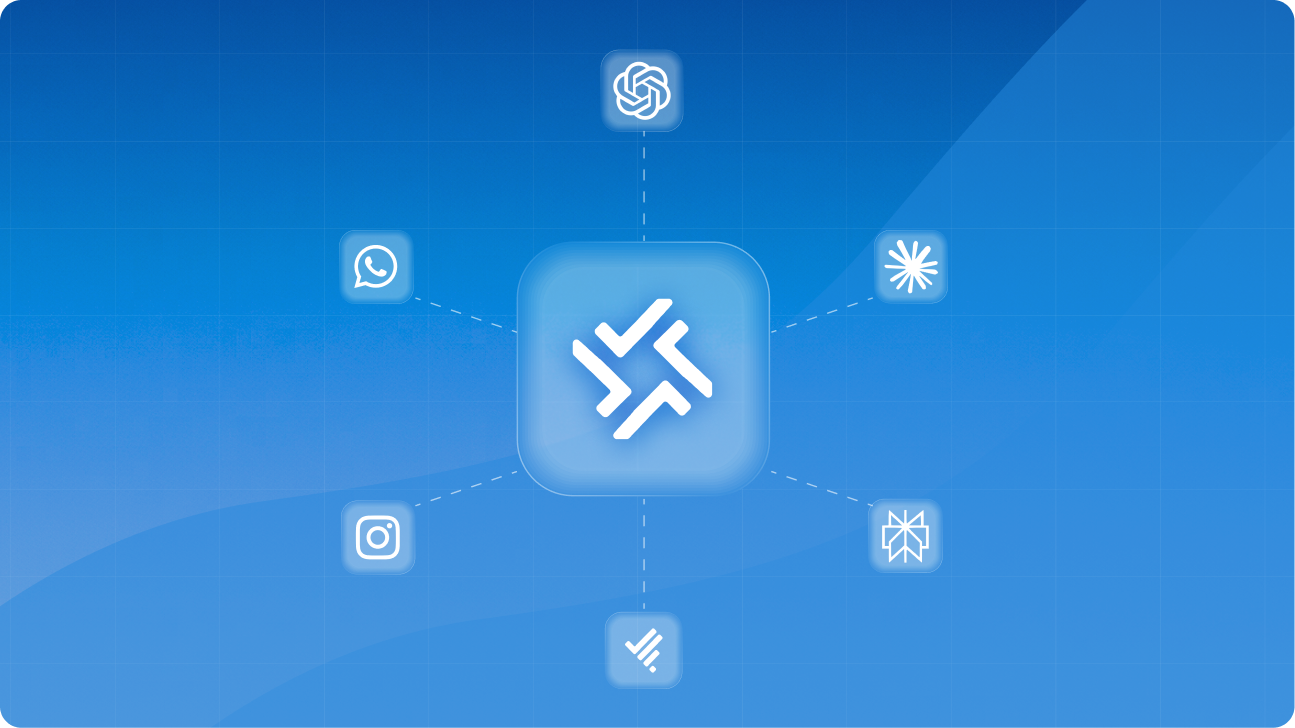
The LegitFit MCP connector is part of LIA, our AI growth partner. It links your LegitFit account to the AI assistant you already use - Claude or ChatGPT - so you can ask questions about your business in plain English and get answers built on your live data. No extra dashboard, no separate login, no CSV exports.
The connector is read-only. Your AI assistant can read your business data to answer your questions, but it can't change anything in your LegitFit account or send information back into it.
Questions you can ask
Lead management
- "Which new leads from the last 7 days haven't booked a class or session yet?"
- "How many new leads came in this month, and how does that compare with last month?"
Marketing
- "Which lead sources brought in the most new clients this quarter?"
- "How many people took up our intro offer last month, and how many went on to buy a membership?"
Sales
- "What percentage of trial or first-visit clients bought a membership in the last 90 days?"
- "Which memberships and packages sold the most this month?"
Retention
- "Which members have booked fewer than four classes in the last 30 days?"
- "Which clients have one or two sessions left on their package and haven't rebooked?"
- "How do this month's cancellations and freezes compare with the previous three months?"
Business health
- "What was my revenue by membership type last month, and what's due to renew next month?"
- "Which class times are consistently under half full, and which have waiting lists?"
- "Which trainers delivered the most sessions this month, and how did that compare with last month?"
How to connect
You only need one connection, whether you run a single location, several locations or an enterprise. Sign in with your usual LegitFit account (your primary location account if you manage several locations, or your enterprise account), and your AI assistant will see the business data and locations that account can access.
Claude (browser or desktop app)
The quickest way is our one-click link: Add LegitFit to Claude. Or add it manually:
- Log in to claude.ai and go to Settings, then Connectors.
- Click Add, then Add custom connector.
- Name it LegitFit and set the Remote MCP server URL to https://legitfit.com/api/mcp. Leave Advanced settings blank.
- Click Add, then sign in to your LegitFit account to approve access.
ChatGPT (browser)
- Log in to chatgpt.com, go to Settings, then Security and login, and turn on Developer mode.
- Go to Plugins and click the + button.
- Name it legitfit and set Connection to https://legitfit.com/api/mcp.
- Tick "I understand and want to continue", click Add, then sign in to your LegitFit account to approve access.
The ChatGPT desktop app isn't supported yet, so use ChatGPT in your browser.
Your data, your rules
Your clients trust you with their information, and that trust doesn't stop when AI gets involved. The LegitFit MCP connector only works once you've signed in and approved it, and it can only see the business data, accounts and locations that your LegitFit login is already allowed to view.
A few good habits to keep:
- Only connect AI tools your business has agreed to use.
- Keep access to the people who need it.
- Check what the AI tells you before acting on it, especially anything that affects a client directly.
More than a connector: what else LIA does
The MCP connector is one part of LIA, LegitFit's AI growth partner. Alongside it, LIA also:
- Answers client messages on WhatsApp and Instagram, 24/7, so routine questions don't pile up between classes.
- Builds exercise programmes in seconds from a client's goals, so coaches spend less time drafting and more time coaching.
- Automates PAR-Q intake, drafting, checking and filing the form to the client's profile.
- Labels clients automatically for milestones, birthdays and new sign-ups, so you know who's who in every class.
- Forecasts revenue from renewals, unfreezes and auto-payments, so you can plan with confidence.
Your weekly scorecard: five things to ask every Monday
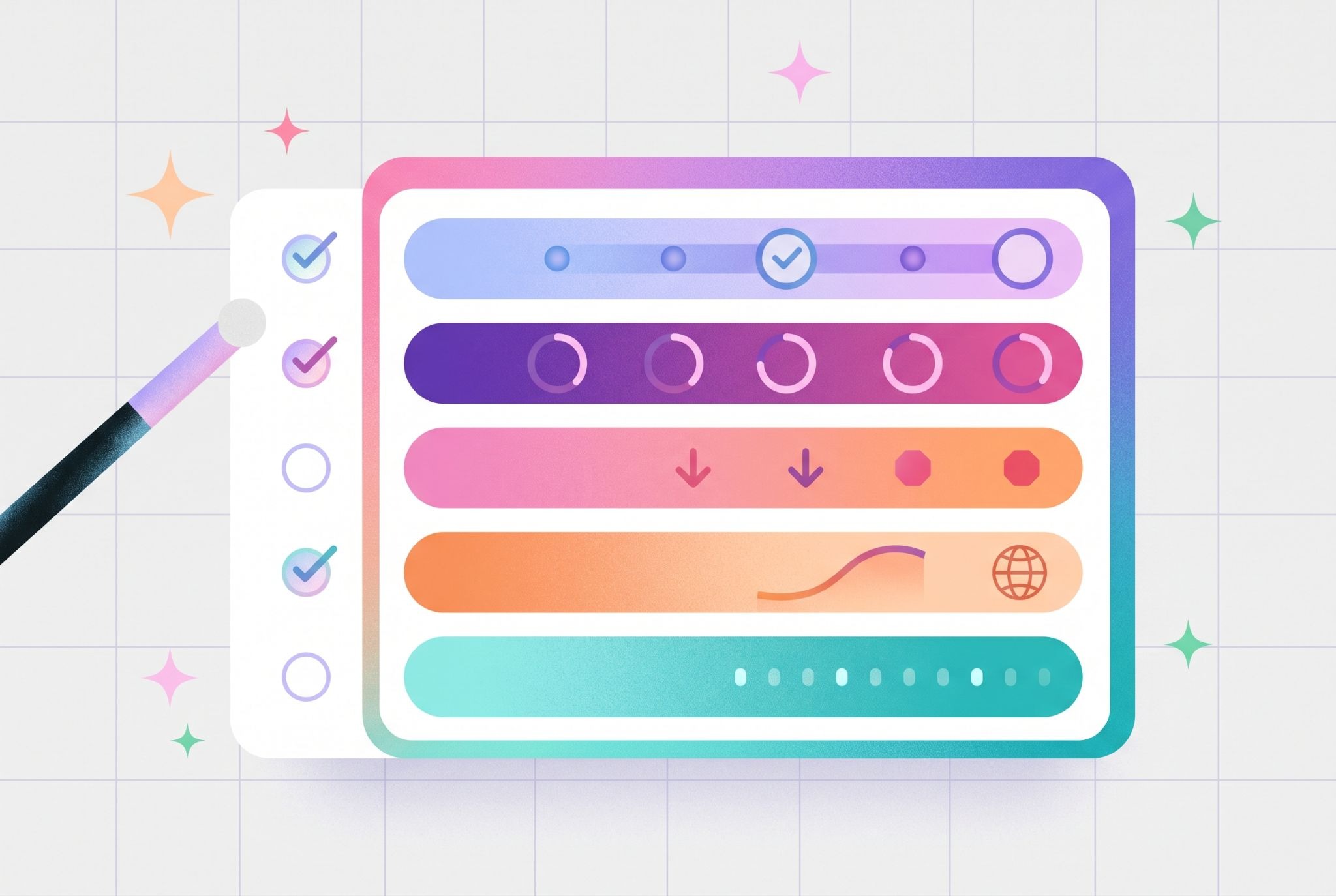
The best use of the connector isn't a one-off question. It's a short routine. Ask these five every week and you'll spot problems while they're still small.
- Leads and conversions. How many new enquiries came in, how many booked a trial or consultation, and how many became paying clients? This tells you whether the issue is demand, speed of follow-up or the sale itself.
- New client habits. How often are clients who joined in the last 30, 60 and 90 days actually showing up? Early attendance is one of the clearest signs of who'll stay.
- Cancellations and freezes. How many, why, and how does that compare with last month? Growth means little if the same number are leaving out the back door.
- Revenue health. What's recurring revenue, average revenue per client, and how much is overdue? Member numbers can look healthy while the business underneath weakens.
- Who needs a nudge. Who's dropped off, who hasn't come back after their first visit, whose payment failed? This one should become a call list, not just a number.
Put it to work this week
- Connect LegitFit to Claude or ChatGPT using the steps above.
- Ask the five scorecard questions above.
- Turn one answer into an action list and give it to someone on your team.
- Ask the same questions next Monday and see what's moved.
Do that for a month and you'll know more about where your business is heading than a quarter's worth of exported reports would tell you.
Frequently asked questions
What is an MCP connector?
An MCP (Model Context Protocol) connector lets AI assistants like ChatGPT and Claude securely access data in another piece of software. LegitFit's MCP connector lets gym and studio owners ask questions about their own business data in plain English.
Which AI tools does LegitFit's MCP connector work with?
Claude, in the browser and the desktop app, and ChatGPT in the browser. ChatGPT's desktop app isn't supported yet.
Can the AI change anything in my LegitFit account?
No. The connector is read-only. Your AI assistant can read your business data to answer your questions, but it can't change anything in your LegitFit account or send information back into it.
Is my client data safe?
The connector only works once you've signed in with your LegitFit account and approved it. It can only see what that login is already allowed to view, and it can't change anything.
Which LegitFit plans include it?
The MCP connector and LIA's other AI features are currently available on every LegitFit plan.
I have more than one location. Do I need a separate connection for each?
No. One connection covers your whole business. Sign in with your primary location account, or your enterprise account if you have one, and your AI assistant will see every location that account can access.
Do I need to be technical to use it?
No. If you can type a question into ChatGPT or Claude, you can use it. Setup takes a few minutes: add LegitFit as a connector, sign in with your LegitFit account, and start asking questions.
See Lia and the MCP connector in action
Want to see how LegitFit turns your business data into answers, and answers into action? Book a demo and one of our team will walk you through it using real examples for your type of business.



Helping fitness business from day one
Trusted by fitness professionals worldwide to simplify day-to-day management and accelerate fitness business growth with clear, proven results.
Get demo & pricing